Prepare a Clear Visit Summary From Your Treatment Notes
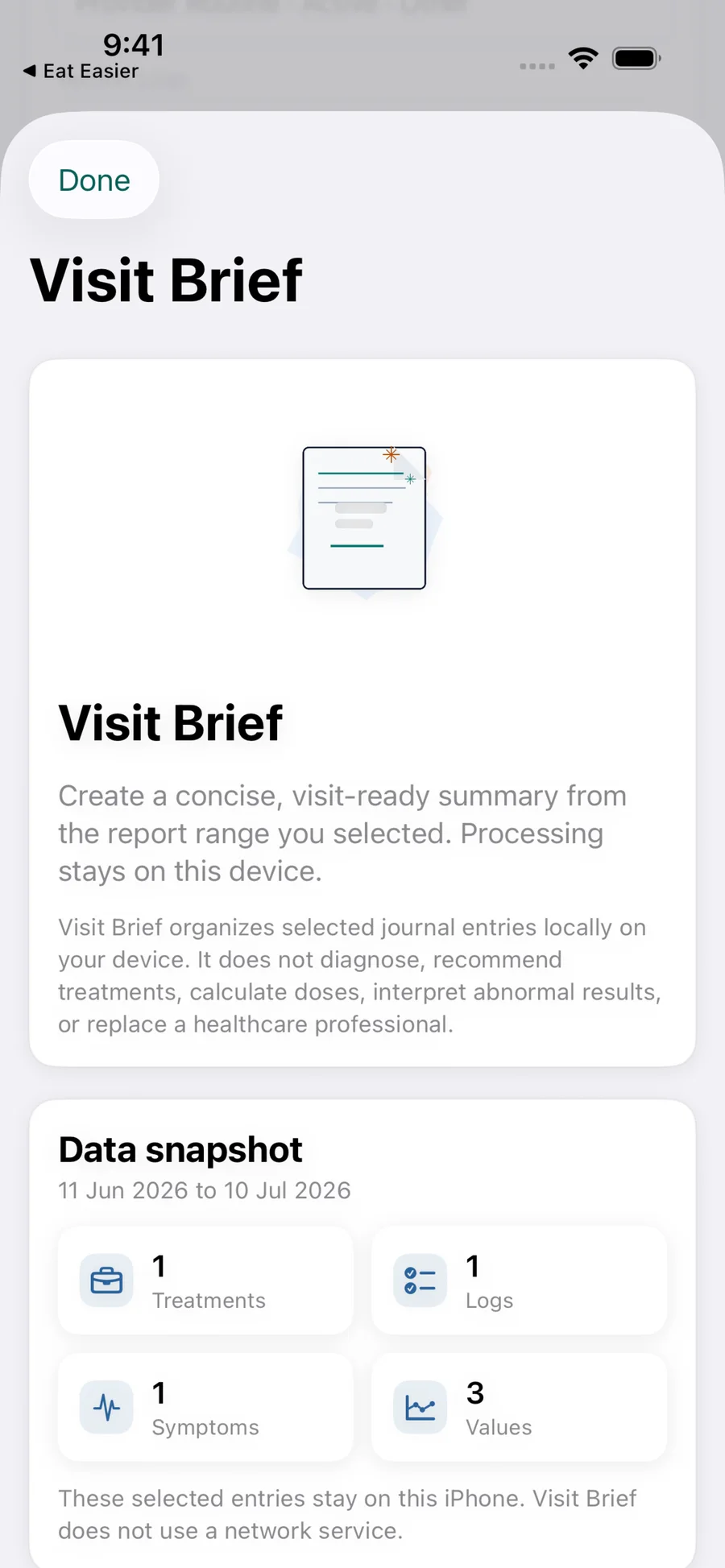
A visit summary is not a diagnosis. It is an organized list of what you already recorded: when something happened, what you noticed, what you were prescribed to do, and what you want to ask. Genetiqo Vault keeps that work on your iPhone. You choose a date range, the app groups treatments, symptoms, labs and metrics into a Visit Brief, and you review it before deciding what to export or share.
Verified against the current Genetiqo Vault product · Updated October 6, 2026- Purpose
- A one-page, non-diagnostic visit summary
- Inputs
- Dates, recorded symptoms, treatments and questions
- Review
- You check the Brief before exporting
- Formats
- PDF or CSV exports when you choose to create them
What this guide does and does not do
It shows how to pick dates, check entry quality, preview a Brief, and export a limited PDF or CSV if you need one. Genetiqo Vault records information you enter. It does not diagnose, prescribe, calculate doses, recommend treatment, or provide emergency care. If you need medical guidance, ask your clinician.
- Use a date range that answers one question.
- Copy dates, observations, units and treatments as recorded.
- Review the whole Brief before creating a file.
- Keep clinical interpretation with your clinician.
- 01
Start with the question you want answered.
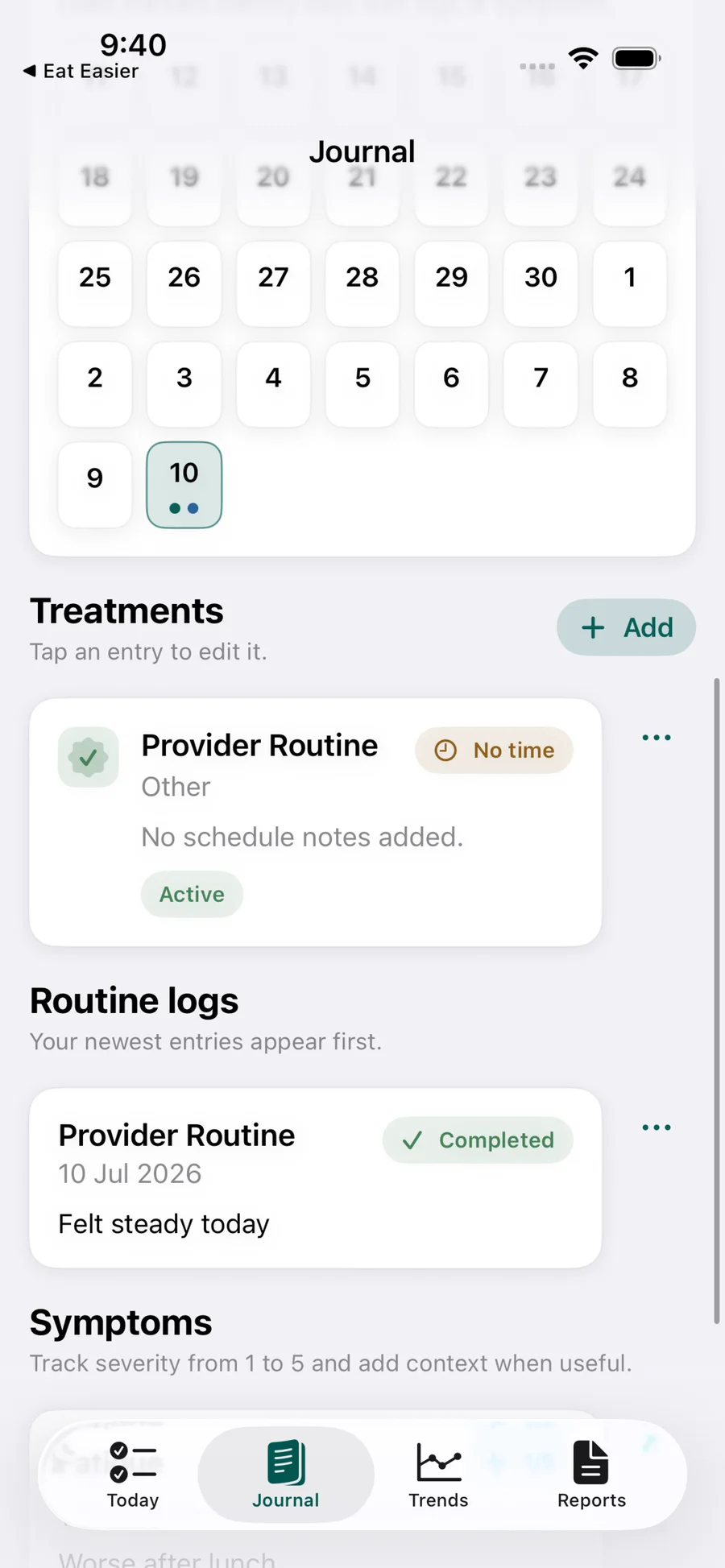
Write one sentence at the top of your notes, for example: I want to show sleep notes and morning routine logs from the last 14 days. That sentence sets your date range. In Vault, use Today for the current routine, Journal for past entries by date, Trends for manually entered metrics and lab values, and Reports when you need a summary.
- 02
Choose a short, exact date range.
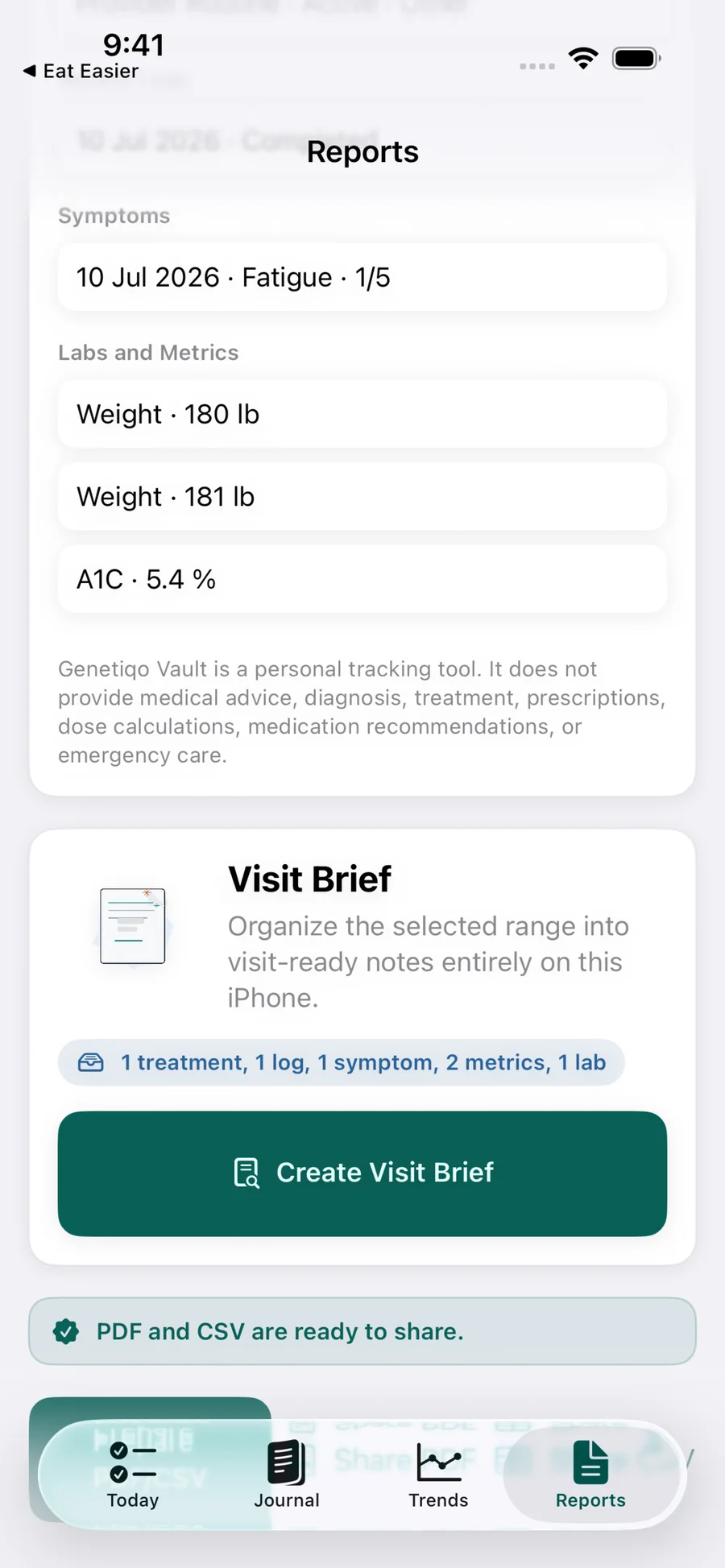
Shorter is clearer. For a routine follow-up, 14–30 days is an example range, not a rule. For a lab review, match the dates of the two most recent results you recorded. In Reports, choose custom start and end dates, then preview which records are included.
- 03
Copy only what you recorded.
Copy only what you recorded. Use this non-medical template; fill it from Journal and Trends and do not add causes or interpretations. Hypothetical example — labeled illustration only, not a real person: Dates covered: April 7–20; recorded routines: evening routine marked completed 11/14 days, skipped 3 days with note “missed time”; recorded symptoms: April 9 headache in the evening and April 12–13 poor sleep noted; recorded metrics/labs: three weight entries with kg and two blood-pressure entries with mmHg as logged; questions for clinician: Are my notes complete enough? Is this date range the right one to review? Should I track anything else next time?
- 04
Check quality before you export.
In Vault, use Entry Quality and pre-report follow-up checks for missing labels, missing units, recent logs, sparse notes, provider labels, reminder times and skipped routines. Fix the label or add the missing unit in Journal, then re-preview. Do not invent values to fill gaps.
- 05
Review the Brief on-device, then decide.
The summary is made on your iPhone from the dates you selected. Read the whole preview and confirm names, dates and units are correct. If you use photo notes, confirm each photo has context and you intend to share it. Nothing leaves the app unless you export or share it.
- 06
Export small when you need to share.
PDF is for reading at the appointment. CSV is for your own sorting or records. Choose the limited date range, create the file with Pro where required, and share through the standard iPhone share sheet. Your journal, imported values, photo notes and Briefs stay in the app on your iPhone unless you explicitly export or share a file. There is no Genetiqo account or Genetiqo cloud sync.
Privacy pass before sharing: No Genetiqo account required. No ads or third-party analytics trackers. No developer-operated sync backend. No sale of health data. For details, read the privacy policy and Visit support. Optional AI digest, if you use it, requires your own API key and a privacy-prepared snapshot; keep it separate from this basic Brief. Try a 14-day Brief for your next appointment, then keep the source entries until after the visit. If you want to practice, open the Visit Brief demo, then check Export as PDF or CSV and Track Lab Results Over Time.