Share a Health Summary Safely from Your iPhone
Genetiqo Vault keeps your treatment journal on your iPhone: routines, symptoms, lab values, metrics and photo notes stay in the app until you decide to export or share something. That design gives you a quiet advantage — you choose what leaves the phone, when, and in what form. This guide shows how to use that control well when a clinician, a caregiver or a second opinion actually needs part of your record.
Verified against the current Genetiqo Vault product · Updated July 16, 2026- Range
- The narrowest date range that covers the question
- Records
- Only the record types the reader needs
- Review
- You inspect the file yourself before sending it
- Copy
- A fresh export rather than a forwarded old file
The principle: smallest useful copy
Every file you export becomes a second copy of your health information living outside the app, under someone else's storage rules.
A follow-up about sleep needs the last three weeks of sleep entries, not five years of everything.
- Pick the narrowest date range that covers the question.
- Include only the record types the reader needs.
- Review the file yourself before sending it.
- Prefer a fresh export over forwarding an old file.
- 01
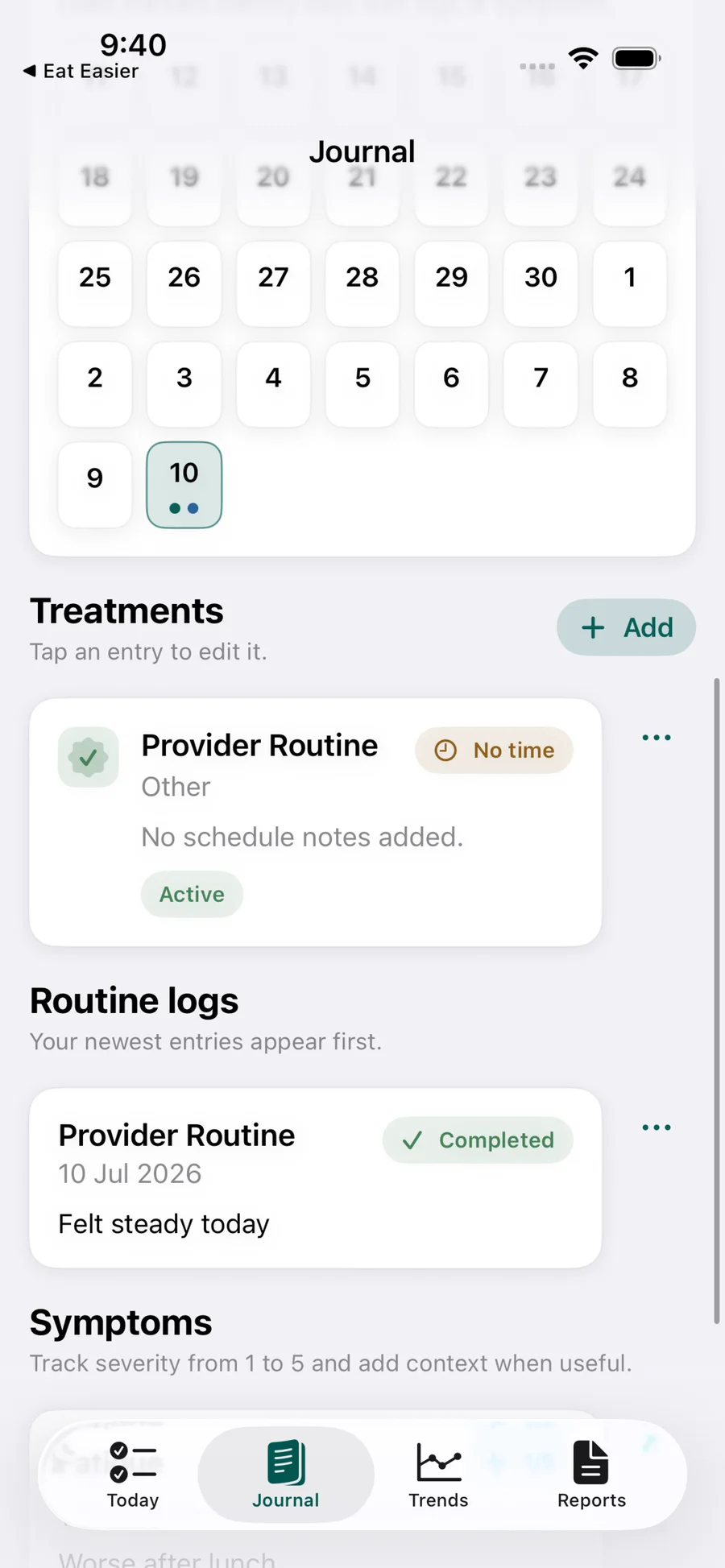
Decide exactly what the reader needs to know.
Write down the question first: a dosage review, a symptom timeline, a lab trend. If you cannot state the question in one sentence, the export is probably too broad. Match the record types to that question — symptoms and routines for a symptom review, labs and metrics for a lab review.
- 02
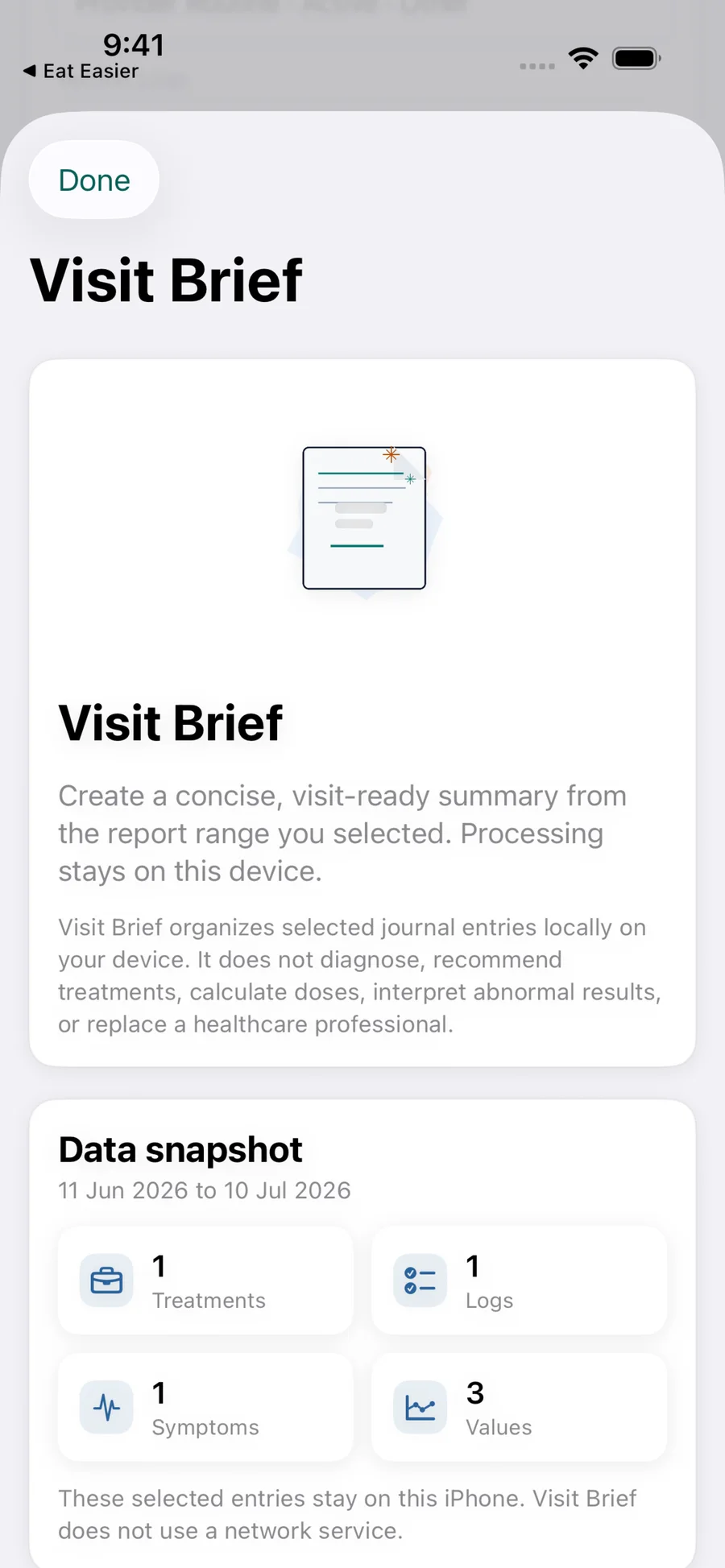
Build a Visit Brief for that question only.
In Genetiqo Vault, choose the date range that covers the relevant period and prepare a Visit Brief. The brief is organized on your iPhone from the entries you selected, so you can read every section and fix incomplete or unclear notes before anything leaves the app.
- 03
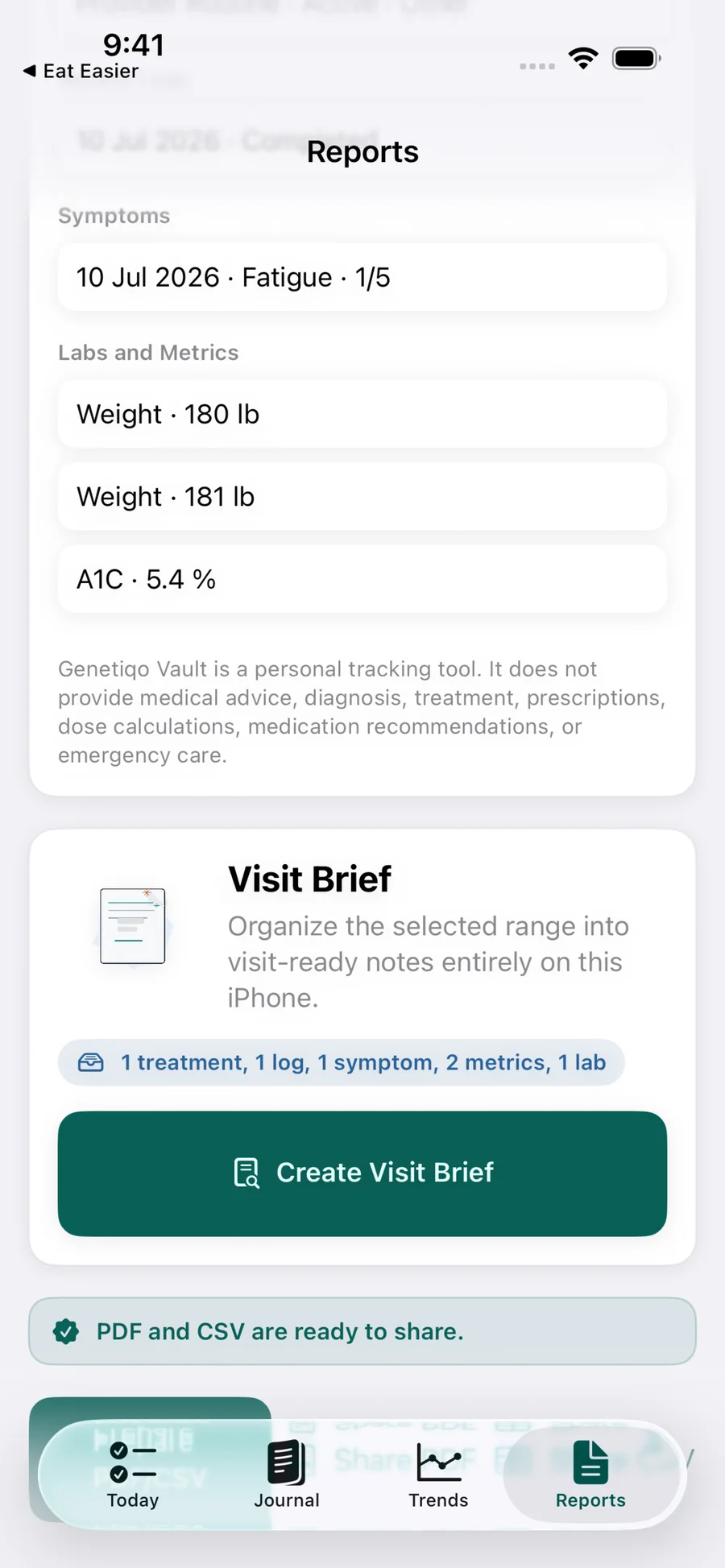
Choose PDF for reading, CSV only when asked for data.
A PDF is a readable snapshot suited to a person reviewing your history. A CSV is structured rows suited to a spreadsheet or a system import. Default to PDF. Create a CSV only when the recipient specifically asked for data they can sort or import.
- 04
Check photo notes before they travel.
Photo notes are the most revealing part of a journal and the easiest to over-share. Open each photo in the selected range and ask whether the reader needs it. When a photo adds nothing to the question, leave that record out of the export or describe the observation in words instead.
- 05
Send it through a channel fit for health information.
How you send the file matters as much as what is in it. Use the method your clinic already uses for sensitive documents — a patient portal, a handed-over printout, or another channel you trust. Avoid forwarding the file through chats or email threads where it can be re-shared, and confirm receipt so you are not tempted to send it twice.
Genetiqo Vault is a private, on-device iPhone journal: no account is required, and the ordinary journal and export workflow does not send entries anywhere until you choose to export or share. The optional AI Digest is a separate flow that sends a prepared snapshot to DeepSeek only after you confirm it, so it is outside this sharing checklist. For clinical interpretation of anything you share, use your own records together with your clinician.